# Leonardo Al
# 什麼是Leonardo AI
#### 什麼是 Leonardo.AI?
Leonardo.AI 是一個創新平台,旨在生成 AI 圖像,使用戶能夠輕鬆存取廣泛的預訓練圖像模型。Leonardo.AI 背後的創新團隊設想透過 AI 的力量,在娛樂領域(尤其是遊戲)的內容創作方面實現突破性轉變。
Leonardo.AI 的技術是基於開源的 Stable Diffusion 上運行,採用類似於 Midjourney 和 Dall-E 等平台的文本到圖像生成方法以及類似的服務。
如同其他繪圖 AI,使用者只需輸入文字指令,就可以生成各式各樣風格的圖片,也可「以圖生圖」,更強大的功能是還能訓練自己的模型。另外也可以使用「文字生成 3D」功能來生成 3D 圖像材質,讓你能夠作出逼真的 3D 圖像材質。最近也新推出了[「即時畫布」](https://leonardo.ai/news/speeding-up-creative-design-with-realtime-canvas/)功能,一邊繪畫另一邊 AI 即時生成圖像,加速你的創意設計。
除了網頁版之外也有推出 APP 應用程式,目前只有 IOS 版本,搭配免費使用的優勢,也是目前很多人使用的 AI 繪圖工具。
# 如何註冊Leonardo AI
#### 註冊 Leonardo.AI
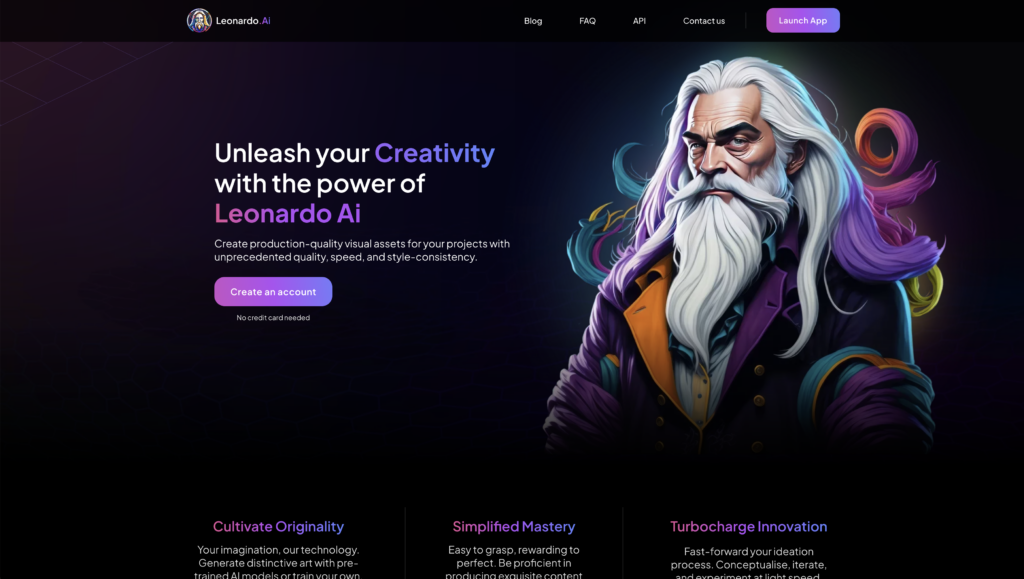
來到官方網站的首頁,點選右上角的「Launch APP」,或是正中間的「Create an account」按鈕。
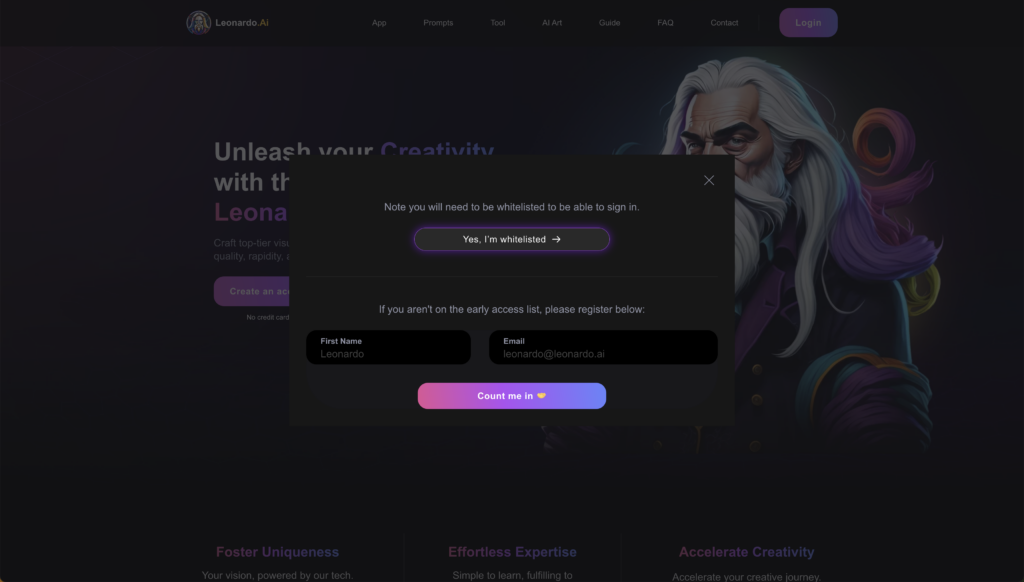
[](https://learnai.tw/wp-content/uploads/2024/01/Leonardo.AI-11.png) 選擇上面的「Yes, I’m whitelisted」按鈕。
[](https://learnai.tw/wp-content/uploads/2024/01/Leonardo.AI-5.png) 就會跳轉到登入的頁面,登入可以選擇 Apple、Google、Microsoft 帳戶登入或是其他使用 Email 登入。
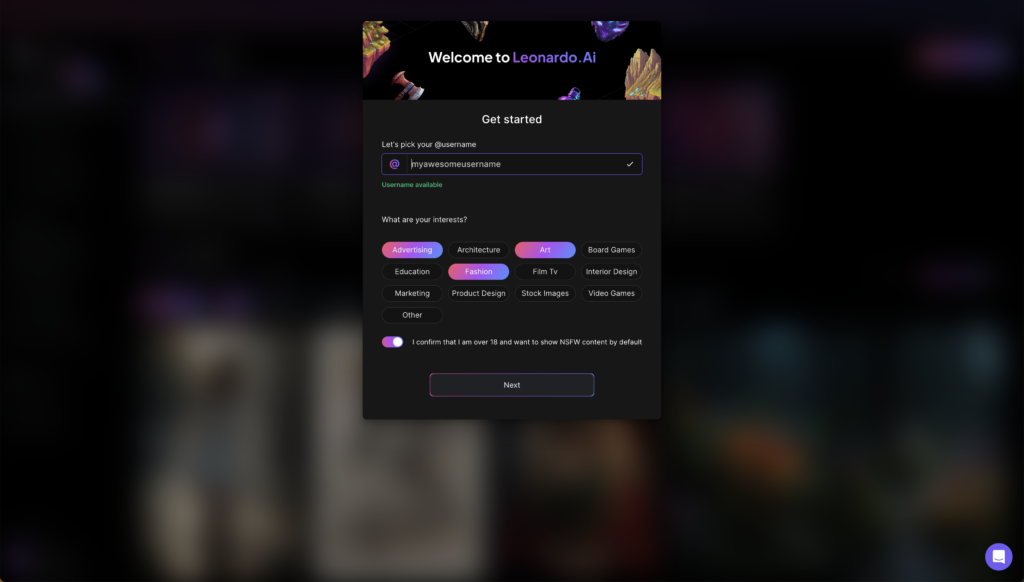
[](https://learnai.tw/wp-content/uploads/2024/01/Leonardo.AI-4.png) 接著填寫用戶名稱、點選感興趣的項目、打開選項開關並按下「Next」即可。
[](https://learnai.tw/wp-content/uploads/2024/01/Leonardo.AI-3.png) 接下來就會進入主要的 Leonardo.AI 介面了。
[](https://learnai.tw/wp-content/uploads/2024/01/Leonardo.AI-2.png) 左邊的側欄列,依序是:
1. **代幣數量**:每日 150 代幣
2. **Home**:首頁
3. **Community Feed**:其他用戶公開分享生成的圖片
4. **Personal Feed**:個人作品
5. **Training & Datasets**:個人訓練的模型和資料
6. **Finetuned Models**:所有模型,有 45 種模型
7. **AI Image Generation**:AI 圖片生成
8. **Realtime Canvas**:即時畫布
9. **Realtime Gen**:即時生成
10. **Canvas Editor**:畫布編輯
11. **Texture Generation**:3D 材質圖片生成
12. **API Access**:使用 API 串接 Leonardo.AI
13. **Setting**:使用者設定
14. **FAQ & Help**:教學說明
# 如何使用Leonardo AI
#### 利用指令生成圖片:AI Image Generation
資料來源https://learnai.tw/leonardo-ai-basic/
選擇「AI Image Generation」,就可以開始使用指令生成圖片功能。
[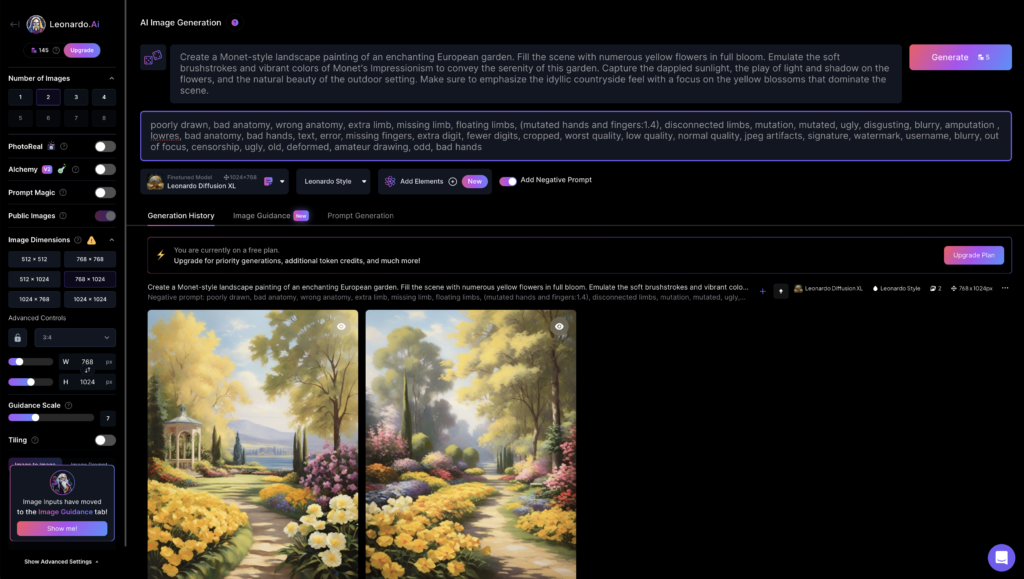](https://learnai.tw/wp-content/uploads/2024/01/Leonardo.AI-8.png) 從左邊列表依序介紹:
1. 生成圖片張數,免費帳號一次可以生成1~4張圖片,生成越多張需要的代幣數就越多。可以在右上角「Generate」看到生成所需代幣數。
2. **PhotoReal 寫實照片**:為測試版用戶提供獨家搶先體驗,幫助您創建從電影攝影到逼真肖像的一切。它不僅在照片寫實主義方面表現出色,而且在為其他美學帶來強烈的寫實主義方面也表現出色。
3. **Alchemy 影像鍊金術**:為付費版功能,能夠使用新的客製化高品質、保真 XL 模型。
4. **Prompt Magic**:讓圖片生成的結果接近提示語,並改善圖片輸出品質。
5. **Public Images**:公開圖片與否,免費版有鎖公開圖片,付費版則可以隱藏圖片。
6. **Input Dimensions**:生成圖片的尺寸大小,預設有六種尺寸,也可以自行設定大小、圖片長寬比例,免費版最大尺寸不能超過 1024\*1024,圖片越大會消耗越多代幣。
7. **Guidance Scale**:文字指令的權重,範圍 1~20,系統建議權重為7。
8. **Tiling**:重複生成紋理或背景。
右邊區域即為填寫指令及生成圖片的區域,依序為:
1. 第一個區塊為填寫指令的部分。
2. 第二個區塊為填寫反提示詞的部分,要將該區塊下方的「Add Negative Prompt」選項打開,才會顯示該區塊。
3. 第三列最左邊的選項可以選擇算圖模型。
4. Add Elements 可以添加混合風格模型,最多可以選擇四種,有六個風格模型可以選擇。
[](https://learnai.tw/wp-content/uploads/2024/01/Leonardo.AI-7.png) 最下方有「Generation History(生成圖片歷史列表)」、「Image Guidance(圖片生成圖片)」、「Prompt Generation(指令生成器)」,等功能可以使用。
#### 圖片生成圖片 Image Guidance
可以在此區塊上傳圖片,搭配指令和設定,產生相似的圖片。
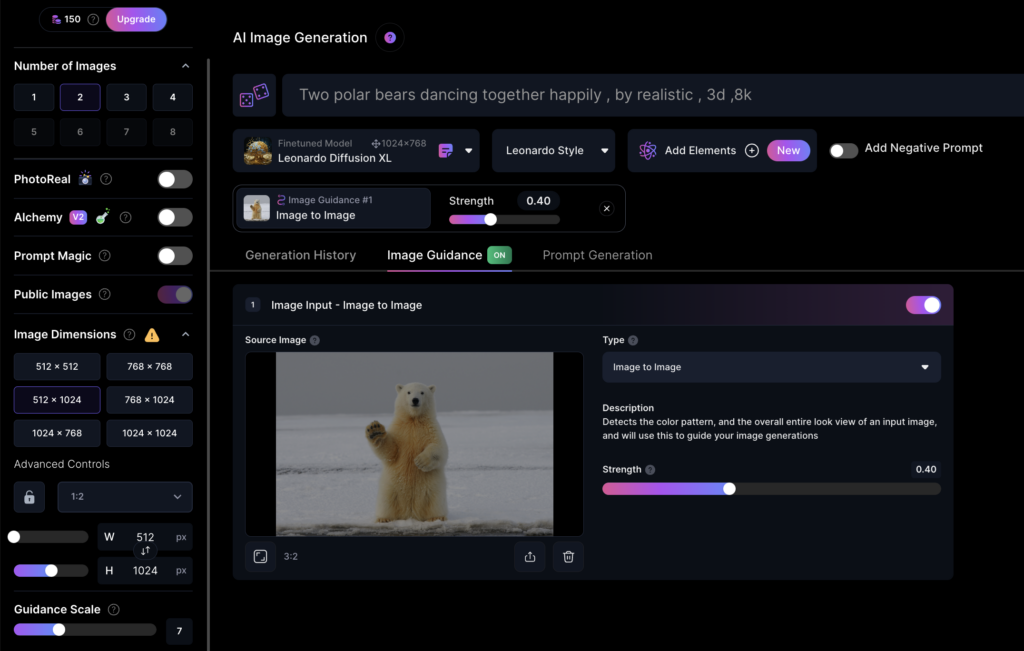
啟用圖片生成圖片的功能,在 Image Guidance 旁邊會出現 ON 的標籤(下方圖顯示為 OFF),免費用戶可使用一張圖片,而付費用戶可以同時使用四張圖片生成素材。
[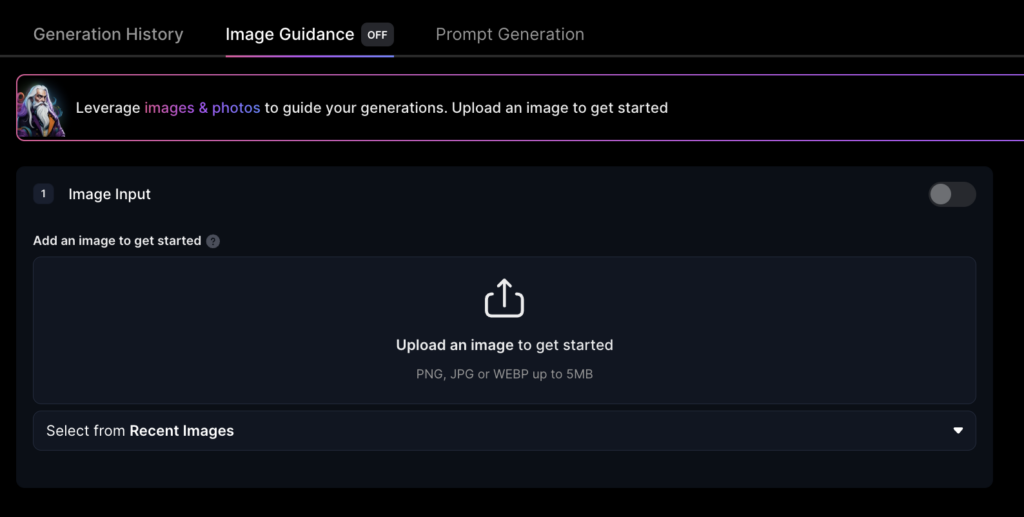](https://learnai.tw/wp-content/uploads/2024/01/Leonardo.AI-9.png) Strength:主要可以調整生成圖片強度,數值越大越接近原圖。
[](https://learnai.tw/wp-content/uploads/2024/01/Leonardo.AI-13.png)
#### 指令生成器 Prompt Generation
不知道要怎麼寫指令時,可以透過這個工具幫忙,從簡單的概念生成複雜的指令。
[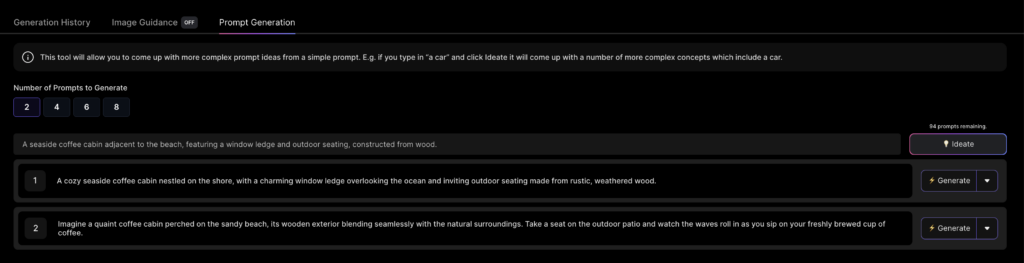](https://learnai.tw/wp-content/uploads/2024/01/Leonardo.AI-14.png) 「2、4、6、8」數字為生成幾個指令想法,可以在數字下方的框框中輸入簡單的指令,再按右邊的「Ideate」,免費帳號有 100 個指令可以生成。
下方即為工具幫你生成的指令,可以點選右邊的「Generate」生成圖片,會套用左側欄位的圖片設定生成圖片唷。
以下為我們用截圖中的指令生成出的圖片:
[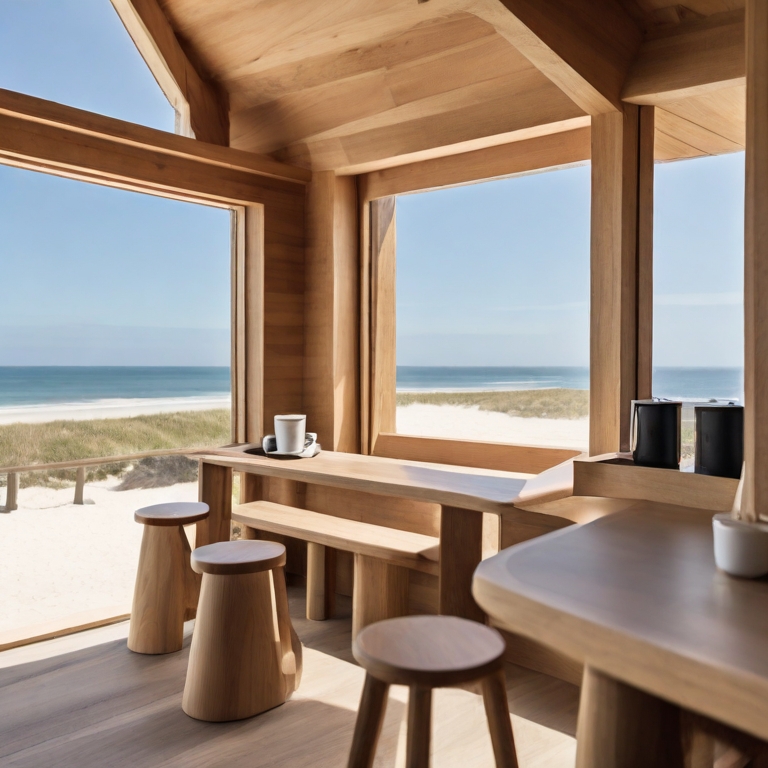](https://learnai.tw/wp-content/uploads/2024/01/Leonardo_Diffusion_XL_A_seaside_coffee_cabin_adjacent_to_the_b_0.jpg)我們提供的簡單指令生成出的圖片:A seaside coffee cabin adjacent to the beach, featuring a window ledge and outdoor seating, constructed from wood. [](https://learnai.tw/wp-content/uploads/2024/01/Leonardo_Diffusion_XL_A_cozy_seaside_coffee_cabin_nestled_on_t_1.jpg)指令生成器-指令1:A cozy seaside coffee cabin nestled on the shore, with a charming window ledge overlooking the ocean and inviting outdoor seating made from rustic, weathered wood. [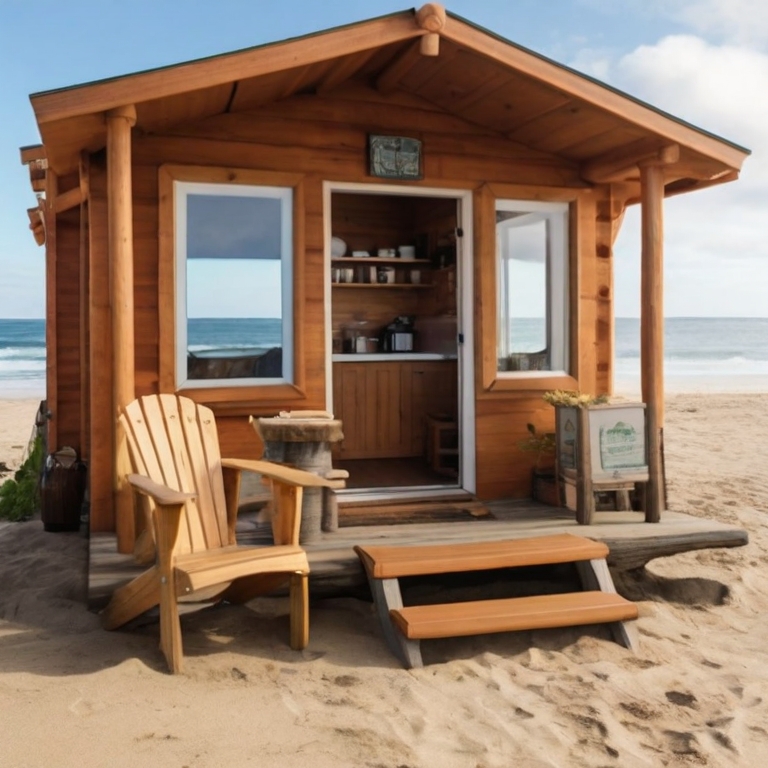](https://learnai.tw/wp-content/uploads/2024/01/Leonardo_Diffusion_XL_Imagine_a_quaint_coffee_cabin_perched_on_0.jpg)指令生成器-指令2:Imagine a quaint coffee cabin perched on the sandy beach, its wooden exterior blending seamlessly with the natural surroundings. Take a seat on the outdoor patio and watch the waves roll in as you sip on your freshly brewed cup of coffee.
#### 即時畫布 Realtime Canvas
「即時畫布」Leonardo.AI 在近期發佈的最新功能,Realtime Canvas 能夠立即將概念草圖轉變為現成的資產,徹底改變了這個過程,使設計師能夠快速迭代和完善他們的想法。更重要的是,擺脫時間限制自然會鼓勵嘗試不同的風格和元素,培育更具活力和創造力的開發環境,同時讓設計師在各個產業中都能運用。
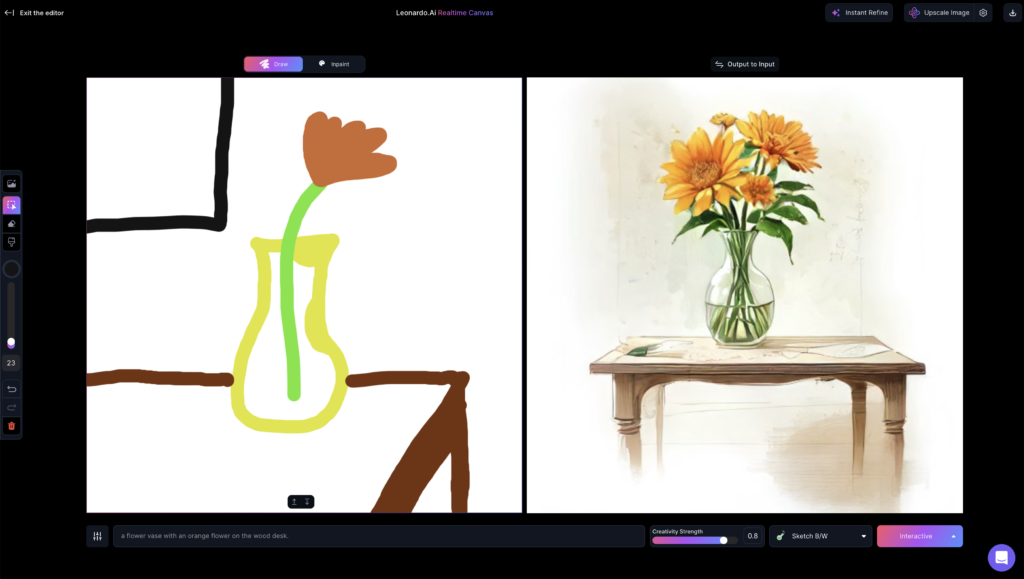
使用的介面較為簡單,最左側有工具列,依序為:新增圖片、選取功能、橡皮擦、筆刷、筆刷顏色、調整筆刷大小、返回、重做、刪除。
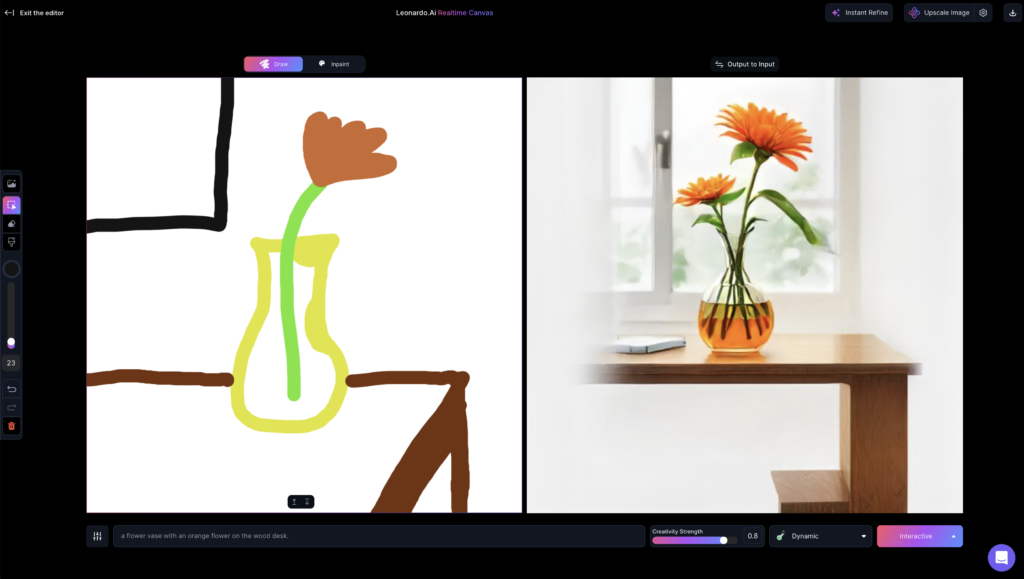
左邊的正方形框框是可以作畫的區域,框框下方可以填寫簡單指令,讓 AI 更好依據你繪畫的結果生成圖片(右邊的框框)
[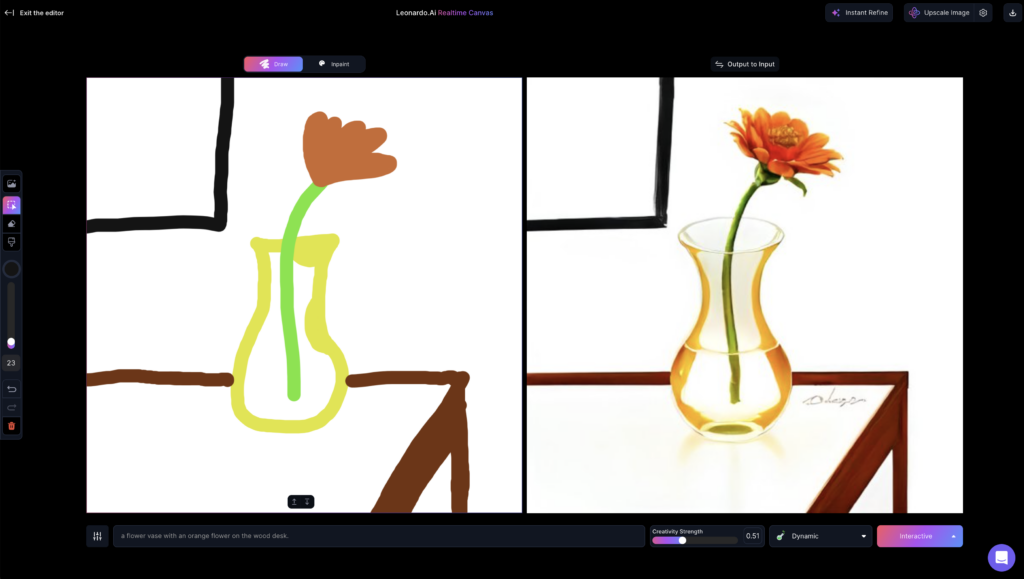](https://learnai.tw/wp-content/uploads/2024/01/Leonardo.AI-15.png) **Creativity Strength** 可以調整 AI 的創造力,數值越少創造力越少,會越接近你的繪畫結果,上圖的創造力為 0.51,下圖的創造力為 0.8,生成出來的圖片有明顯的不同。
[](https://learnai.tw/wp-content/uploads/2024/01/Leonardo.AI-16.png) Creativity Strength 右側的 Dynamic 點開後可以選擇各種不同的生成圖片風格。
[](https://learnai.tw/wp-content/uploads/2024/01/Leonardo.AI-17.png) 點選右上角的「下載圖示」可以下載生成出的圖片。目前使用「即時畫布」功能是不用消耗任何代幣的。
[](https://learnai.tw/wp-content/uploads/2024/01/image-1.jpg) [](https://learnai.tw/wp-content/uploads/2024/01/image.jpg)
#### 即時生成 Realtime Gen
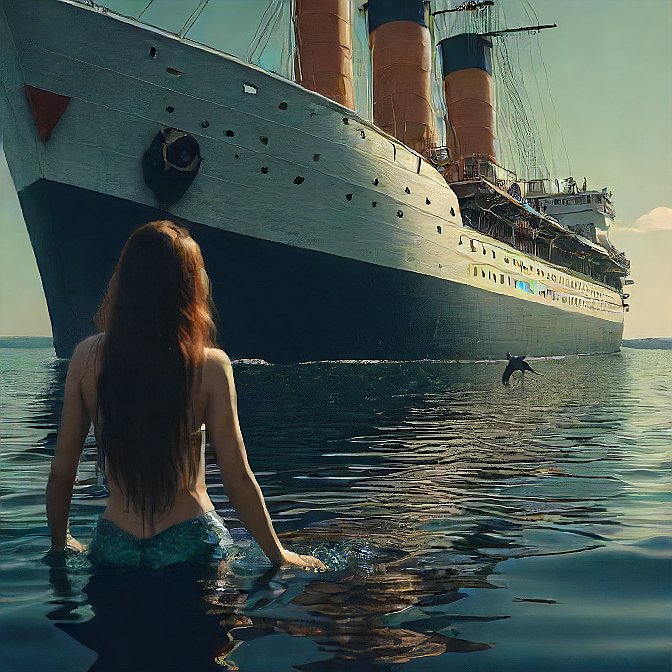
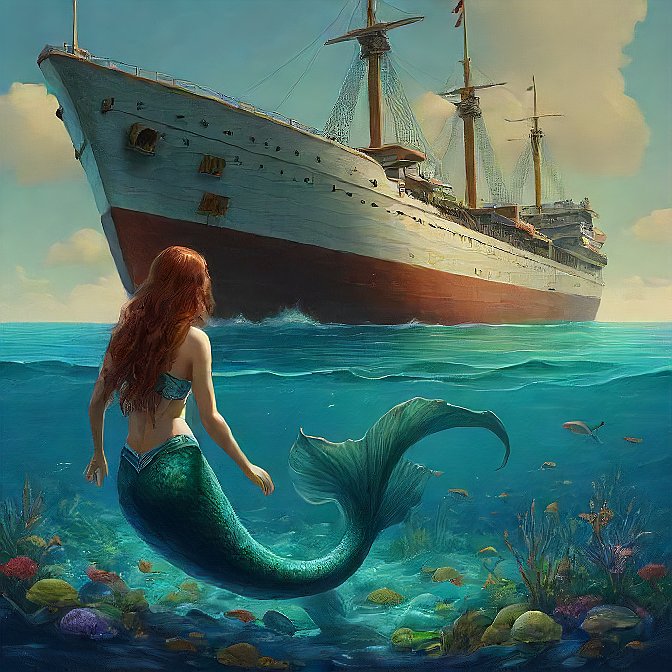
「即時生成」的介面極為簡單,右側「Elements」四種繪圖模型,可以自己調整數據。下方的指令區塊,可以任意填寫指令,會即時生成圖片在上方正方形區域中。
右側的 Dynamic 點開後可以選擇各種不同的生成圖片風格。
[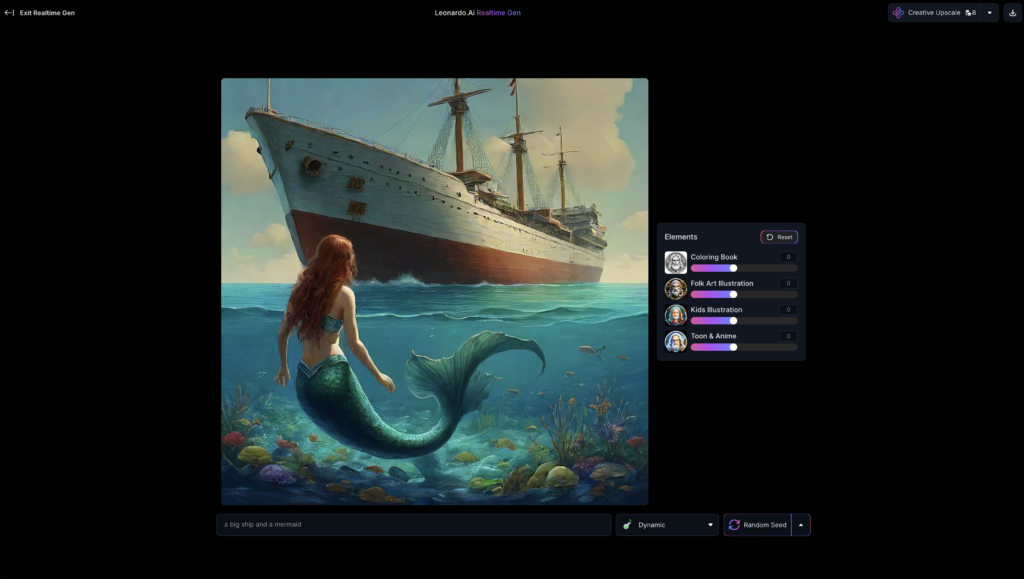](https://learnai.tw/wp-content/uploads/2024/01/Leonardo.AI-18.png) 點選右上角的「下載圖示」可以下載生成出的圖片。目前使用「即時生成」功能是不用消耗任何代幣的,若要升級創造力才會需要代幣。
#### 畫布編輯 Canvas Editor
除了 AI 生圖之外,還可以對圖片進行 AI 編輯。「畫布編輯」功能可以讓你匯入圖片,進行細節調整,新增物品在畫面上,或在既有的圖片上,進行構圖的延伸。
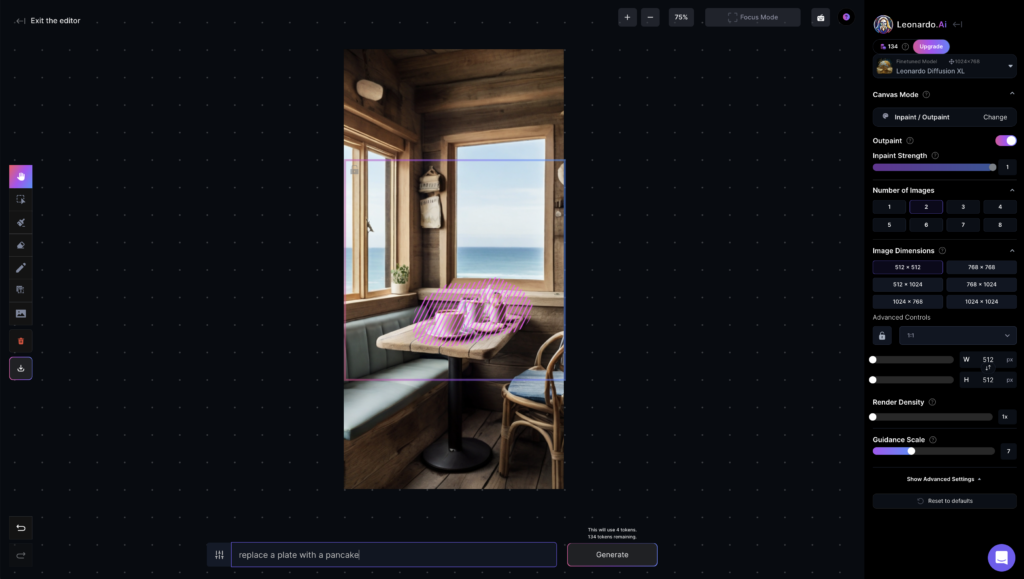
最左側的工具列依序是:移動、選曲、繪製遮罩(圖中粉紅色斜線處)、橡皮擦、畫筆、文字工具、匯入圖片、刪除、下載。
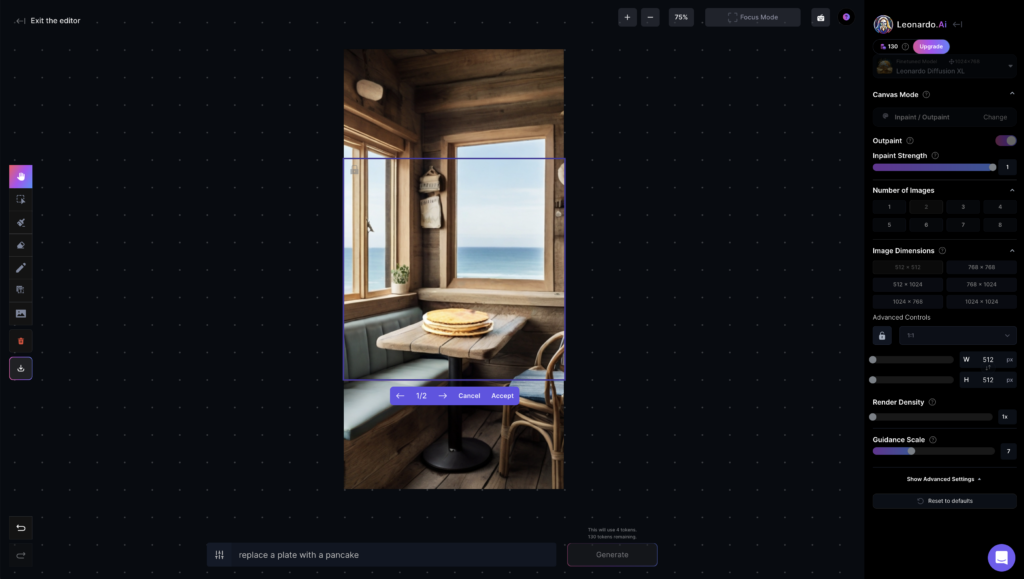
我們使用先前生成的圖片,使用「繪製遮罩」圈選要修改的地方,並在圖片下方寫下指令。我們這邊要將桌上的物品替換成一盤鬆餅,接著在右側設定生成圖片的參數,如同 AI 生圖的設定,這邊最多可以生成 8 個結果,但最後只能選擇一個替換,且已花費的代幣不會歸還,設定好之後再點選「Generate」,會依據生成張數消耗代幣。
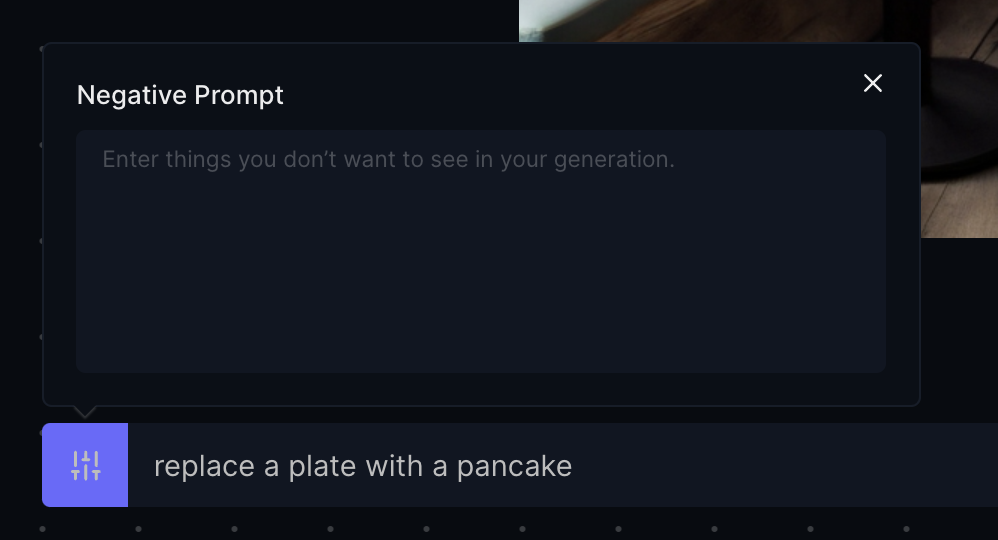
[](https://learnai.tw/wp-content/uploads/2024/01/Leonardo.AI-19.png) 在指令左側的設定按鈕點開,可以填寫反提示詞。
 我們生成兩個結果,有喜歡、滿意的結果可以按「Accept」進行替換。
 畫筆功能可以讓 AI 生成你繪製的圖片,在右側的「Canva Mode」要選擇「Img2img」,可以巧妙或徹底改變底層內容,同樣適用於修飾或完全重新構想。
資料來源https://learnai.tw/leonardo-ai-basic/