# 如何使用Ideogram AI
[](https://genai.thu.edu.tw/uploads/images/gallery/2024-08/64Wimage.png)
#### Step 1. 建立帳號與登入
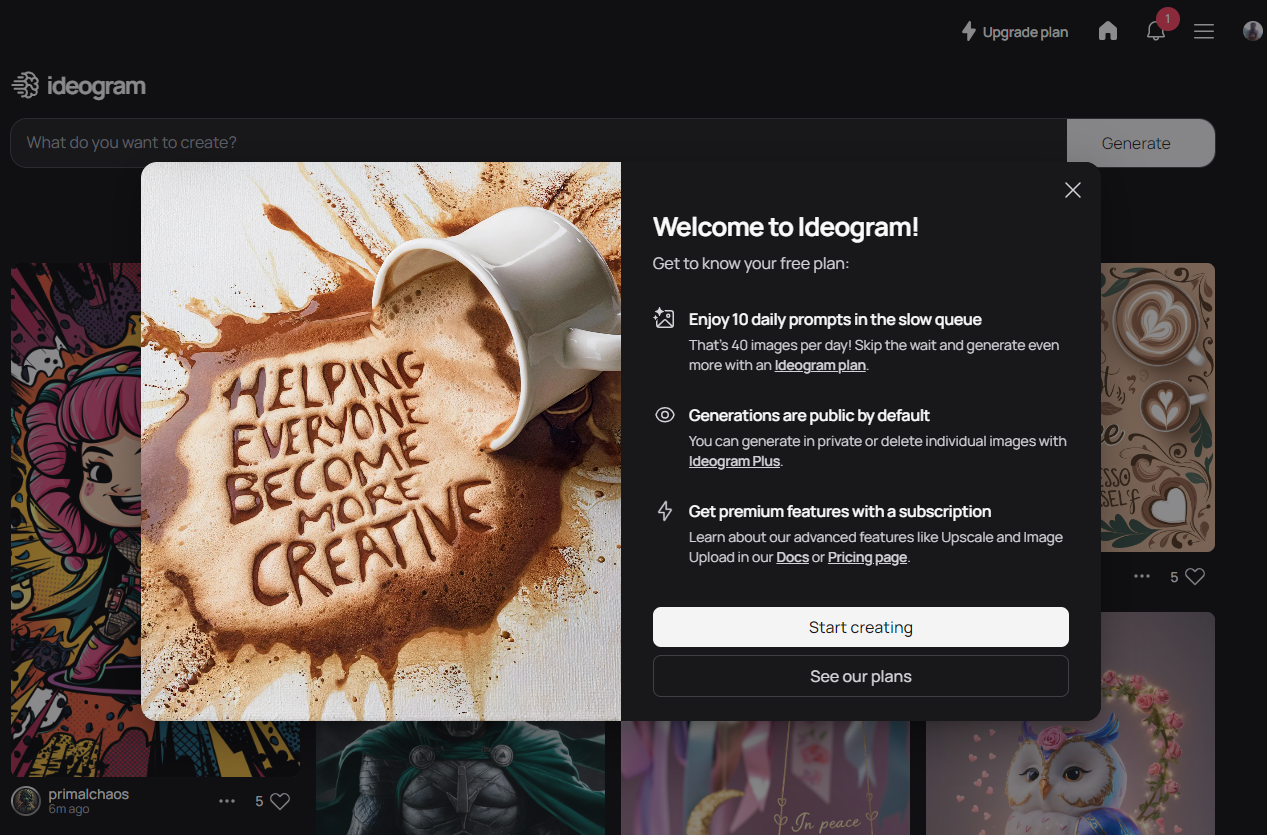
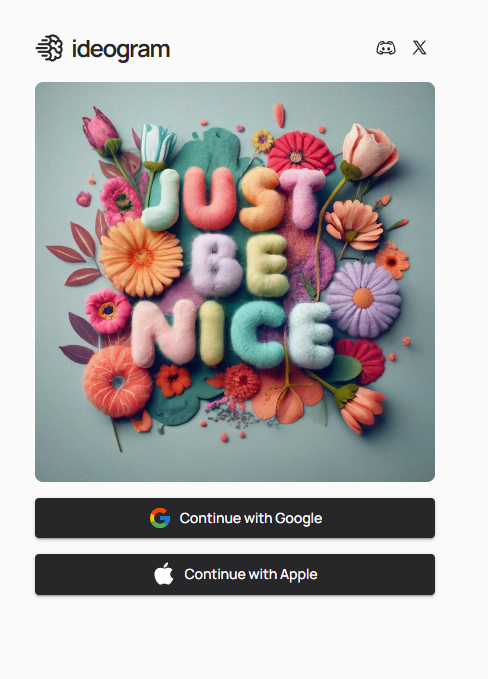
登入Ideogram AI 網站(可用Google 帳號登入)。
[](https://genai.thu.edu.tw/uploads/images/gallery/2024-08/fRVimage.png)
#### Step 2. 輸入提示語(Prompt)
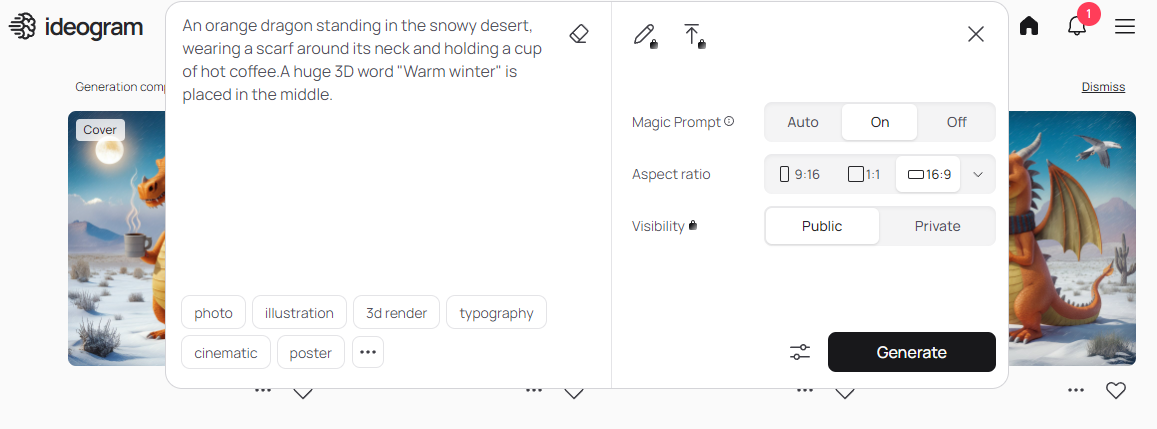
使用者便可以在首頁上方的生成欄位輸入產製圖片的提示語,輸入中文或是英文皆可。輸入完提示語之後,下方會出現不同圖像風格的標籤,像是插畫、相片、3D渲染等,左方則是可以設定是否要使用系統的魔術指令(Magic Prompt)、選擇生成圖像的尺寸大小、生成圖像是否公開(付費版才可選擇不公開)。設定完成後,接著依照個人喜好與需求點選圖像風格標籤,選完標籤後便可以點擊按下Generate的按鈕,Ideogram便會依照使用者輸入的提示語與選擇的風格標籤生成4張圖片。
#### 案例:
舉例來說,如果想要畫出一隻在沙漠雪地裡站著的橘色龍,脖子上圍著圍巾,手裡拿著咖啡,便可以在提示語中輸入「An orange dragon standing in the snowy desert, wearing a scarf around its neck and holding a cup of hot coffee.」,便會生成如圖3的4張圖片供使用者選擇與下載。[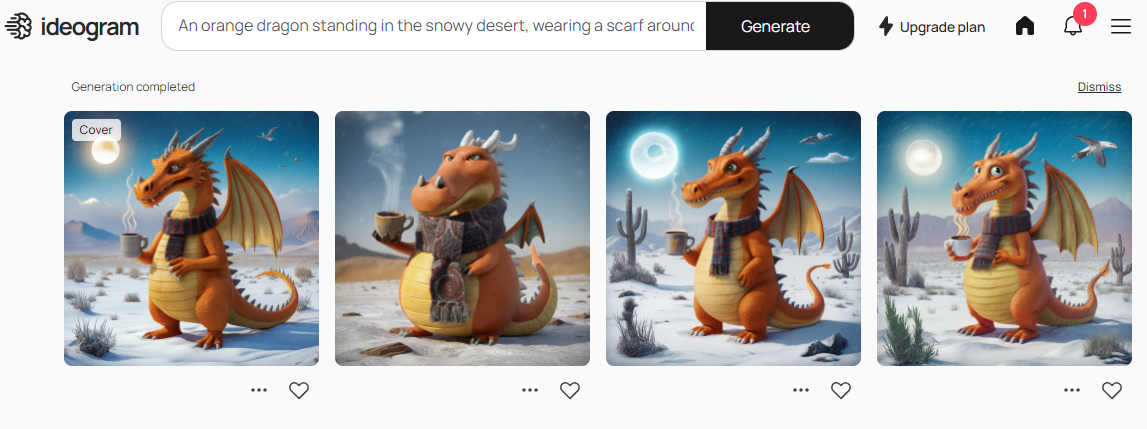](https://genai.thu.edu.tw/uploads/images/gallery/2024-08/5lPimage.png)
圖:Ideogram生成圖片範例
[](https://genai.thu.edu.tw/uploads/images/gallery/2024-08/jGOimage.png)
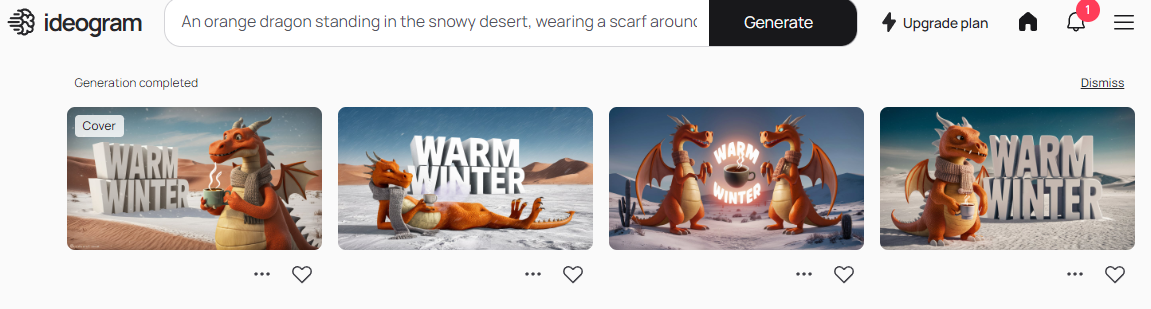
如果想在圖像中直接呈現文字內容,則是在輸入提示語時,便要將想呈現在圖像上的文字內容用雙引號標註,目前Ideogram能夠呈現在圖片上的文字僅以英文為限。延續前個步驟,接著在生成圖3的提示語中加上「A huge 3D word "Warm winter" is placed in the middle.」,最後即生成如以下的圖片。
[](https://genai.thu.edu.tw/uploads/images/gallery/2024-08/ayhimage.png)